
Maybe a newer OS feels sluggish on your older Intel Mac. Maybe you miss the days before the interface went flat, or you just need a stable, familiar workspace that runs a specific older app without complaint. Moving back to a system that fits your hardware isn't a step backward; it's practical.
Questions worth asking first
- Will my Mac actually run this? Apple kept the door open pretty wide here. It supports the MacBook from early 2015 onward, the MacBook Air from mid 2012, and the MacBook Pro from mid 2012. If you're on an iMac from late 2012 or later, a 2017 iMac Pro, or a Mac mini from late 2012, you're in good shape. The base ask is 2 GB of memory and 12.5 GB of free storage.
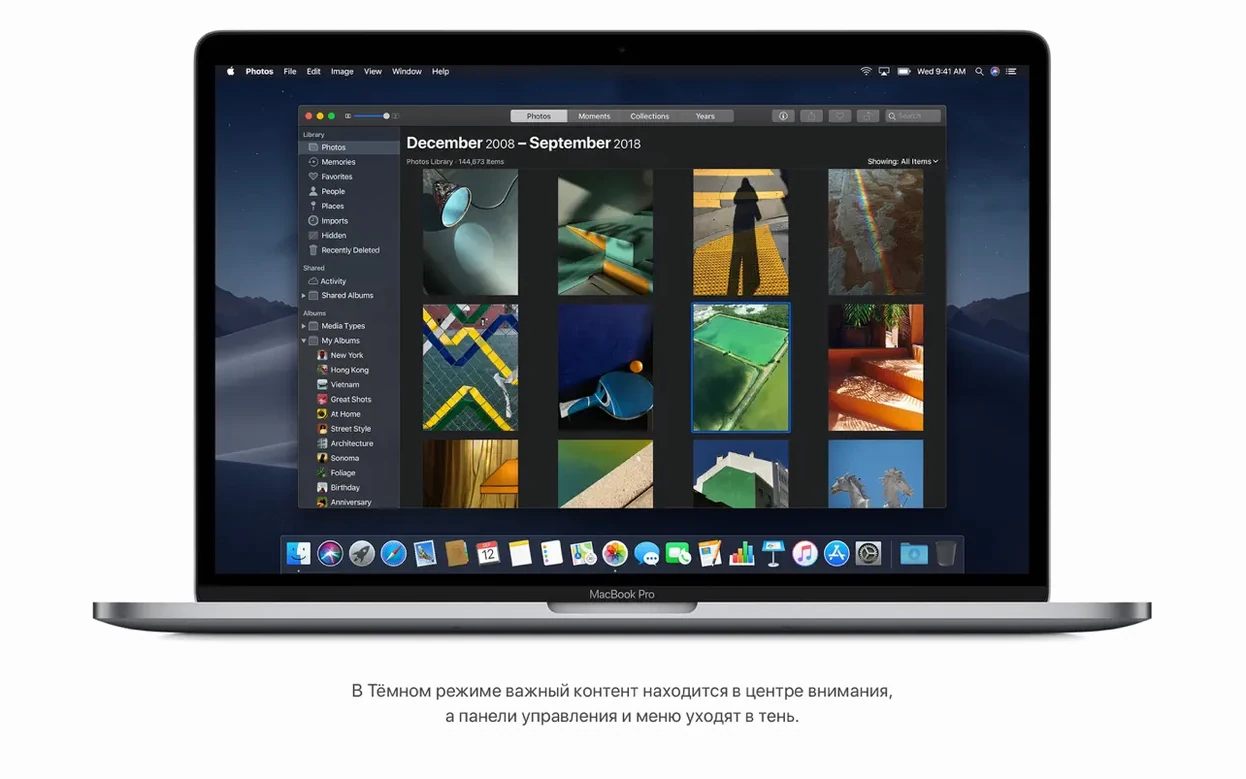
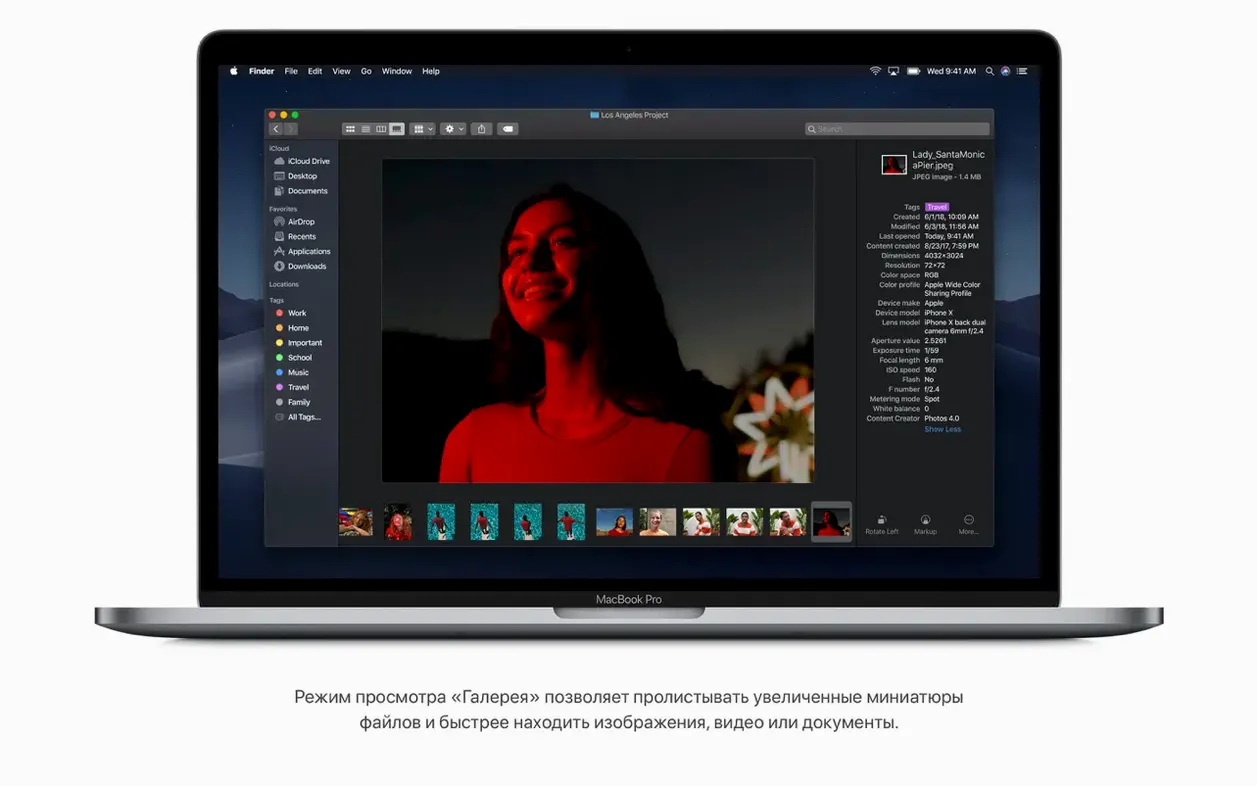
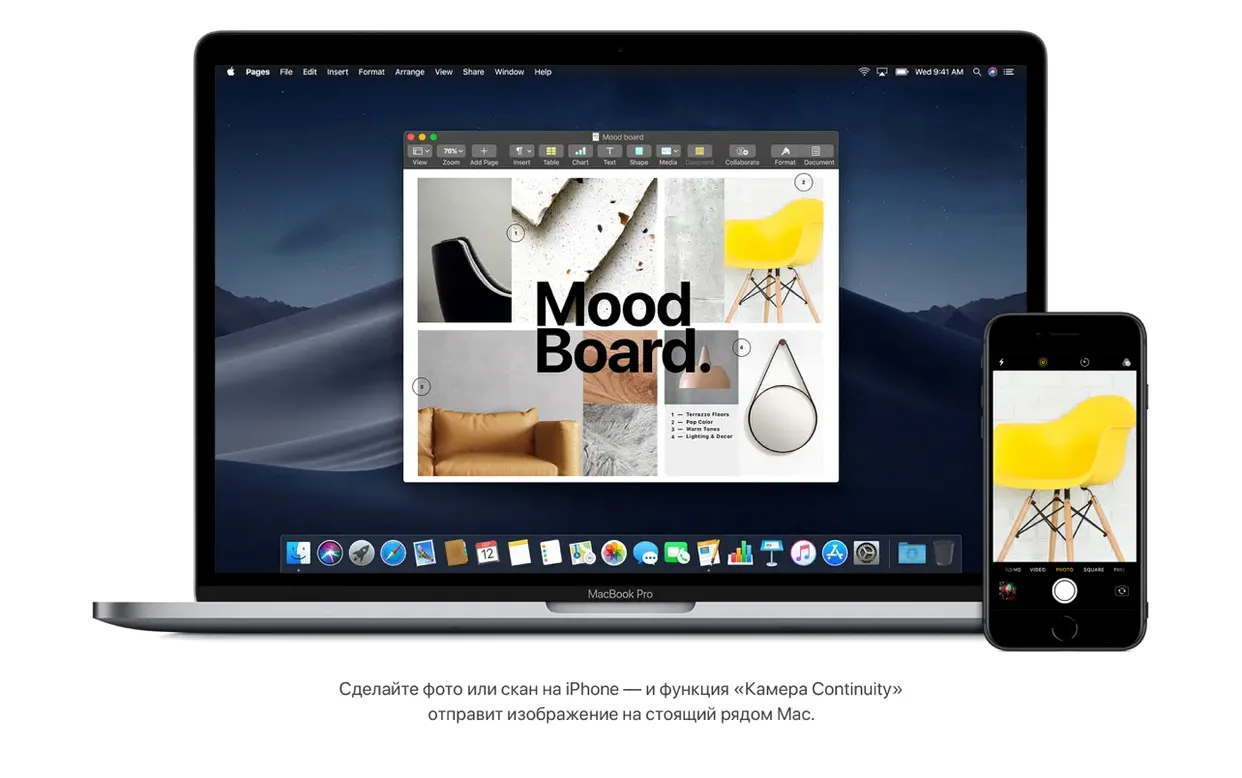
- What makes it worth returning to? The Finder got a proper Gallery View for scrolling through big file previews and seeing metadata right there. Dark Mode arrived in this release, which is much easier on the eyes for late-night design or bookkeeping work. And Continuity lets you grab a photo or scan from your iPhone and drop it straight into a document on the Mac without hunting for cables.
A practical, steady workspace
macOS Mojave 10.14.6 was the final refinement of this release, focused entirely on stability. You get the built-in Safari browser and a Finder that feels built for people who actually need to see what's inside their files before opening them. For a small shop owner juggling product photos, receipts, and a dozen open folders, that's not a minor thing. It's a system that stays out of your way so you can get back to the work.
Intel Mac owners who pause here
Not every Mac user needs the latest OS, and plenty are happier when they stop chasing it. The people who settle into Mojave and stay there tend to fall into a few clear groups.
First, owners of Intel Macs from the 2012–2015 range. These machines run Mojave natively without patching, and the performance is often better than what they'd get from a newer release. If you're on a mid-2012 MacBook Pro with an SSD and 8 GB of RAM, Mojave feels responsive in a way that later versions rarely do on the same hardware.
Then there's the creative crowd with a stable toolchain. Photographers who rely on a specific version of Lightroom, musicians with a collection of 32-bit Audio Units, and designers who never wanted to move past their perpetual-license Adobe suite. Mojave runs those apps without the compatibility gymnastics that later macOS versions demand.
Small business owners are another group I see sticking around. When your point-of-sale software, label printer driver, and bookkeeping app all work perfectly, an OS update isn't an upgrade — it's a risk. Mojave gives you Dark Mode for late-night invoice sessions, a Finder that handles photo previews and quick edits without launching a separate app, and a system that doesn't push you toward subscription services you don't need.
There's also a quieter crowd: people who simply prefer the look and feel. Before the interface went fully flat and iOS-influenced, Mojave struck a balance that still feels distinctly Mac. If you're someone who stares at the screen all day, that matters.
A session with Mojave, step by step
Here's how a working morning might unfold after you've settled in.
You wake the Mac and the desktop is exactly as you left it — no surprise rearrangements. A handful of receipts, product photos, and a PDF spec sheet are scattered across the desktop from yesterday. You click the desktop, choose Stacks from the View menu, and everything snaps into neat piles by file type. The receipts cluster together, the photos form their own stack, and the PDF sits alone, ready for you to grab. One click on the photo stack fans it out so you can pick the shot you need.
You open that photo in Gallery View right from the Finder. No app launches. The large preview fills the window, and the metadata strip along the bottom shows resolution, camera model, and the date you took it. You realize it needs a slight rotation. You click the rotate button in the preview pane, and it's done. A Quick Action trims a second image on the spot. You haven't opened Photos or Preview yet.
Later, a supplier emails an invoice as a PDF. You right-click it in the Finder, choose "Encrypt" from the Quick Actions menu, set a password, and forward it without ever opening the file in a dedicated editor. That's the kind of small efficiency that adds up when you're juggling twenty things before lunch.
Mid-morning, your iPhone buzzes with a photo of a fabric swatch you need to color-match. You unlock the phone, snap the picture, and within seconds it appears on the Mac desktop via Continuity. You drag it straight into a Pages document for a customer proposal.
By noon, Safari has kept a handful of supplier tabs open without trackers following you across them — Intelligent Tracking Prevention works quietly in the background. You haven't thought about the OS once. That's the point.
Flip on dark mode and let it settle
A few things I'd do right after the install finishes, before I get busy and forget.
Turn on Dark Mode early. It's in System Preferences > General. Give it a full day — not just five minutes — before you decide. The adjustment takes a little time, and once your eyes adapt, switching back feels harsh.
Get your desktop under control with Stacks. Even if you're tidy, try it: right-click the desktop and choose Use Stacks. Let it group everything by kind for a week. You'll find out quickly whether you love it or hate it, and you can toggle it off just as fast.
Customize the Finder sidebar. Open a Finder window, drag your most-used folders into the sidebar, and remove the ones you never touch. It sounds small, but the sidebar is your main navigation. Tailoring it on day one saves dozens of extra clicks by the end of the week.
Run through Quick Actions in the Finder. Select a few images, PDFs, and video clips. Check the bottom of the Preview pane or right-click to see what's available: rotate, trim, mark up, create PDF, encrypt. Knowing what you can do without opening an app changes how you reach for files.
Set up Continuity once. Make sure both your Mac and iPhone are signed into the same iCloud account and have Wi‑Fi and Bluetooth on. Take a test photo with your phone, then look in Finder or right-click in a document window for the "Import from iPhone" option. Once it works, you'll reach for it constantly.
- Squashes bugs and improves the overall stability and reliability of your Mac.
- An Intel-based Mac
- 2 GB of memory
- 12.5 GB of available storage
- MacBook (Early 2015 or newer), MacBook Air (Mid 2012 or newer), MacBook Pro (Mid 2012 or newer), Mac mini (Late 2012 or newer), iMac (Late 2012 or newer), iMac Pro (2017), or Mac Pro (Late 2013, or mid 2010/mid 2012 with Metal-capable graphics)
Questions from the stall
What hardware do I need for macOS Mojave?
It requires an Intel-based Mac with at least 2 GB of memory and 12.5 GB of available storage. Supported models include MacBook (Early 2015 or later), MacBook Air (Mid 2012 or later), and MacBook Pro (Mid 2012 or later).
What are the standout features of Mojave?
It introduced Dark Mode, a Finder Gallery View for previewing files and metadata, and Continuity features that let you pull photos and scans directly from an iPhone or iPad into your Mac workspace.
Notes from other shops 0
Sign in or open a shop account to leave a note.
No notes yet. If you've used this on a shop Mac, tell me how it went.